
With the Dstny Conversational Intelligence integration, you can automatically send AI-generated meeting summaries from DCI to Microsoft Dynamics 365. Each summary is added as a Note (Annotation) on the matching Contact and, when possible, also on the matching Account (Company) — allowing your team to review insights directly within Dynamics.
Getting Started
Prerequisites
- A Dynamics 365 user with authority to authorize apps via OAuth.
- Access to Dstny Conversational Intelligence with permissions to manage integrations.
- Best Practice: Ensure Contacts in Dynamics have an email (primary) and/or phone number set for accurate matching.
Connect Dynamics 365 and Dstny Conversational Intelligence
- Retrieve your Domain: Open Dynamics 365 and navigate to any Contact or Account. Copy the URL from your browser (e.g., https://yourcompany.crm.dynamics.com/). You can paste the full URL into DCI; the system will extract the domain automatically.
- Open DCI: Go to Settings > Integrations > Dynamics 365.
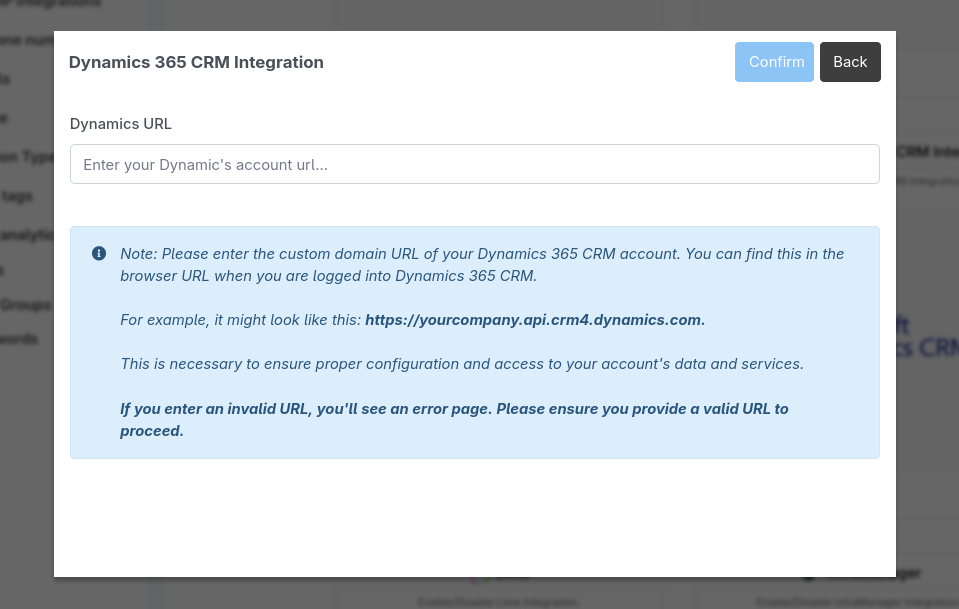
- Configure: Paste your Dynamics domain or the full record URL into the required field and click Confirm.
- Authorize: You will be redirected to Microsoft to sign in and approve permissions. Once finished, return to DCI to confirm the status shows as Connected.
Optional: Match AI Summary to the Meeting
On the Dynamics 365 integration card in DCI, you can enable "Match AI summary to the meeting if possible."
When enabled, DCI will attempt to attach the AI summary directly to the matching Dynamics Calendar appointment by searching for an appointment that matches the meeting join URL and start time. This is a best-effort feature. If no matching appointment is found, DCI will still attach the notes to the Contact and Account as usual.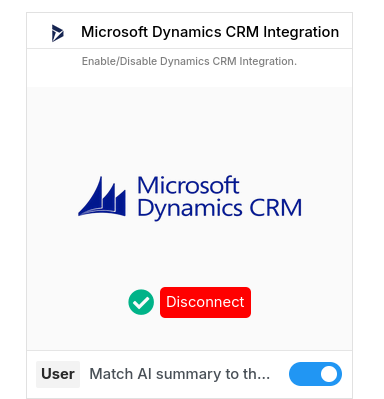
How it Works
- Meeting: Conduct your meeting or call in Dstny Conversational Intelligence.
- Processing: DCI generates the AI summary (typically within a few minutes).
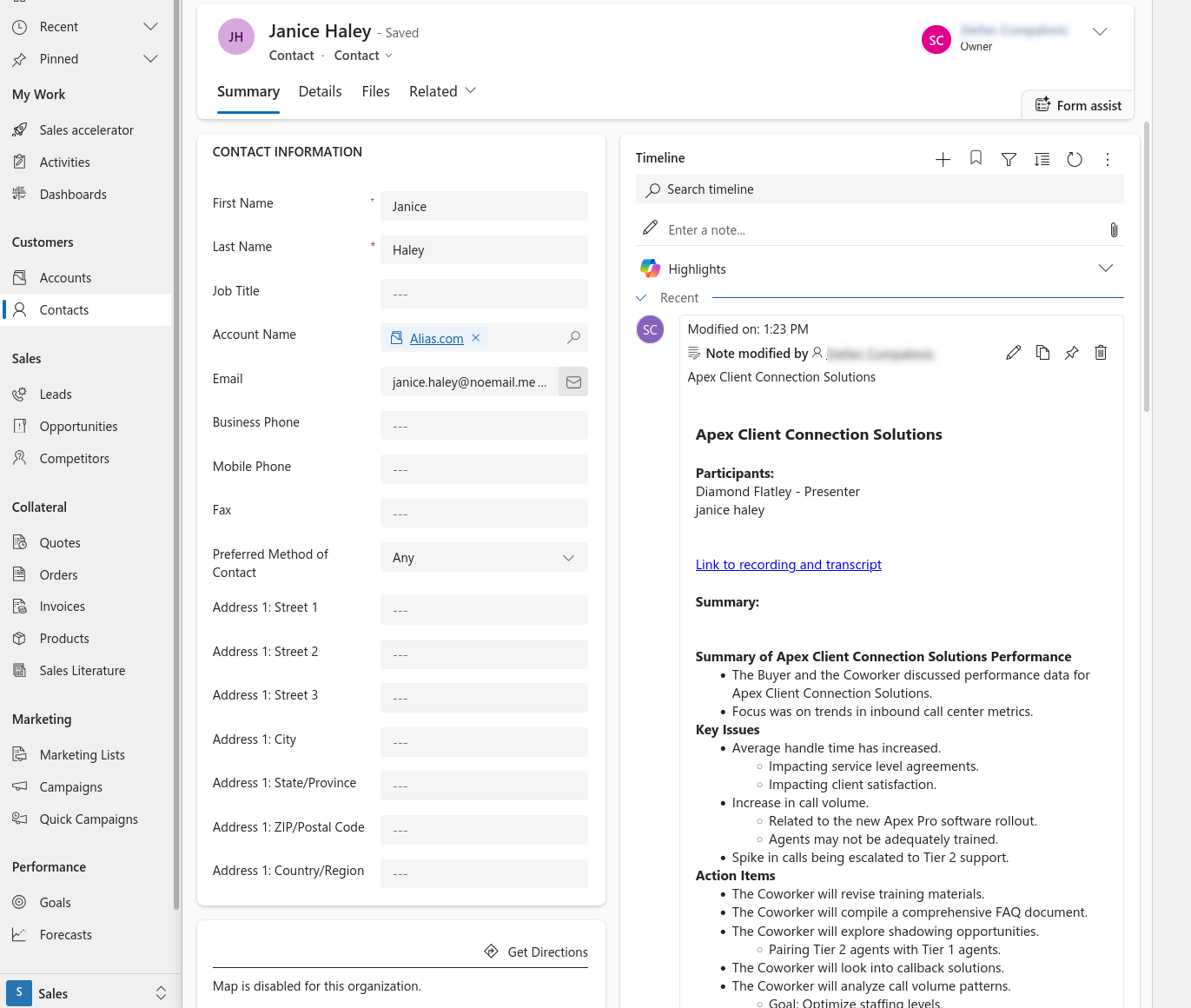
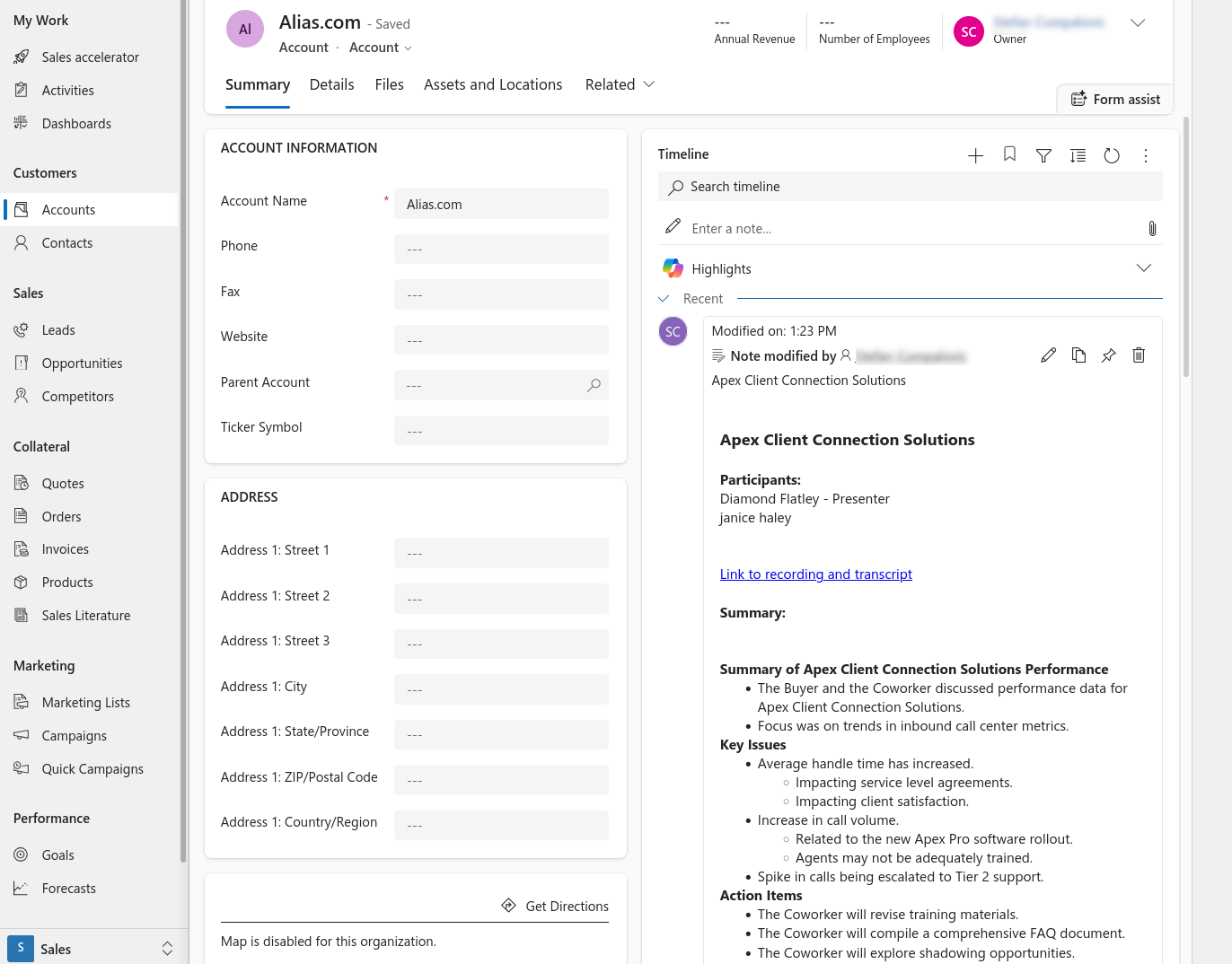
- Matching & Linking: DCI identifies the correct records and creates Notes (Annotations) containing the meeting name and participant list, a link to the recording and transcript in DCI, manual notes, and the full HTML-formatted AI summary.
Using the Integration
Where to find summaries in Dynamics
- On a Contact: Open the Contact > Notes / Timeline > expand the DCI note.
- On an Account: Open the Account > Notes / Timeline > expand the DCI note.
- On a Calendar Appointment (if enabled): Open the Appointment and look for the attached Note/Annotation.
Data Mapping
Contact & Account Matching
- Primary (Email): Matches against the Dynamics field
emailaddress1. - Fallback (Phone): Matches against Dynamics fields
mobilephoneortelephone1. - Account Lookup: DCI identifies the Account by looking up the company relationship connected to the matched contact.
Troubleshooting
-
No note appears: Confirm the summary is finished, verify the contact exists with the correct email/phone, and ensure the connected Dynamics user has permission to create Notes.
-
Note on Contact but not Account: Ensure the Contact is properly associated with an Account in Dynamics.
-
Appointment note missing: Confirm the Dynamics appointment contains the correct online meeting join URL and matches the meeting time.
-
Connection issues: If the sync stops, disconnect and reconnect in DCI to refresh the OAuth token.
What to send to Support
- DCI session link/ID.
- Your Dynamics domain (e.g., yourcompany.crm.dynamics.com).
- 1–2 participant emails/phones expected to match.
- Links to the Dynamics Contact/Account where you expected the note.
Disconnecting
- In DCI, navigate to Settings > Integrations > Dynamics 365.
- Click Disconnect to revoke access and stop further syncing.
Note: Any notes (Annotations) already created in Dynamics 365 will remain as historical records and are not deleted if you disconnect the integration.
Security & Privacy
- OAuth 2.0 Authentication: DCI connects to your environment via Microsoft's official OAuth 2.0 protocol, ensuring DCI never sees or stores your Dynamics password.
- Secure Token Management: Access tokens are encrypted and stored in a secure environment.
- Encrypted Communication: Every request between DCI and Microsoft Dynamics 365 is protected using HTTPS.
- Data Sovereignty: Dynamics 365 stores the text-based AI summary and a direct link to the session. DCI remains the sole host for your meeting recordings and transcripts; these are never transferred to or stored within Microsoft Dynamics.