
With the Dstny Conversational Intelligence integration, you can automatically send AI-generated meeting summaries from DCI to Lime CRM. Each summary is added as a History note and linked to the matching Person (contact) — and when available also to the Company — so your team can review insights without leaving Lime CRM.
Getting Started
Prerequisites
To set up the integration, you will need the following:
- Admin access in Lime CRM.
- A Lime CRM API key.
- Your Lime CRM API URL (the base URL to your specific Lime CRM instance).
- Access to Dstny Conversational Intelligence with permissions to manage integrations.
Connect Lime CRM and Dstny Conversational Intelligence
- Retrieve Credentials: Create or copy your Lime CRM API key and copy your base API URL from Lime CRM.
- Open DCI: Navigate to Settings > Integrations > Lime CRM.
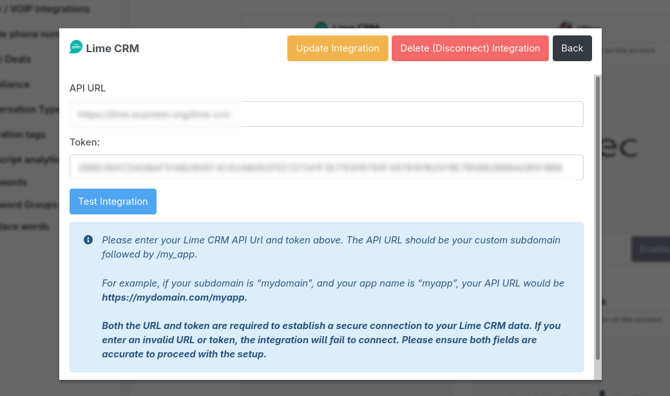
- Paste Credentials: Enter your API key and API URL into the respective fields.
- Save: Click Connect / Save.
Test Connection
Click Test connection in Dstny Conversational Intelligence to ensure the credentials are valid. A success message will appear if the connection is established correctly.
Important — Lime CRM On-Premise support
This integration supports both Lime CRM Cloud and Lime CRM On-Premise installations. If you use On-Premise, make sure the Lime CRM API base URL you enter in Dstny Conversational Intelligence is reachable from DCI's servers (publicly accessible, or exposed via your company's proxy/VPN setup) and that your firewall allows access. If your environment requires IP allowlisting or additional network configuration, please contact your IT team or DCI Support before connecting.
How it Works
The Sync Process
- Meeting: You conduct a meeting or call in Dstny Conversational Intelligence.
- AI Analysis: DCI generates the AI summary once the meeting ends.
- Matching: DCI searches for the matching contact within Lime CRM.
- Creation: DCI creates a History note and links it to the relevant records.
- Sync Timing: Data typically syncs a few minutes after the meeting ends, once the AI summary is fully generated.
What is Created in Lime CRM?
Dstny Conversational Intelligence generates a History note containing:
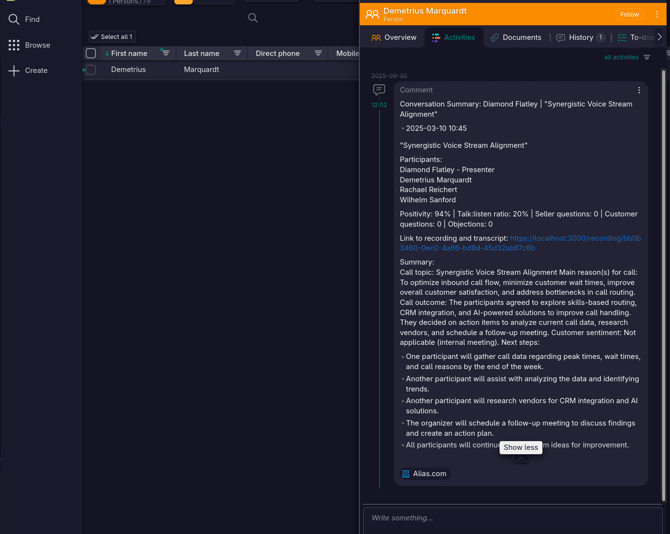
- Title Line: Format includes Conversation Summary | presenter | meeting name | date/time.
- Participants: A list of attendees.
- Links: A direct link to the recording and transcript in DCI.
- Notes & Summary: Any manual notes taken and the complete AI-generated summary.
Note: If a meeting includes multiple external participants, DCI may create separate history notes for each matched contact.
Using the Integration
Once the integration is active, you can view your AI-generated summaries directly within Lime CRM.
Viewing Summaries on a Person (Contact)
- Open the Person/Contact in Lime CRM.
- Navigate to the History / Activities tab.
- Locate the DCI entry and expand it to read the summary.
Viewing Summaries on a Company
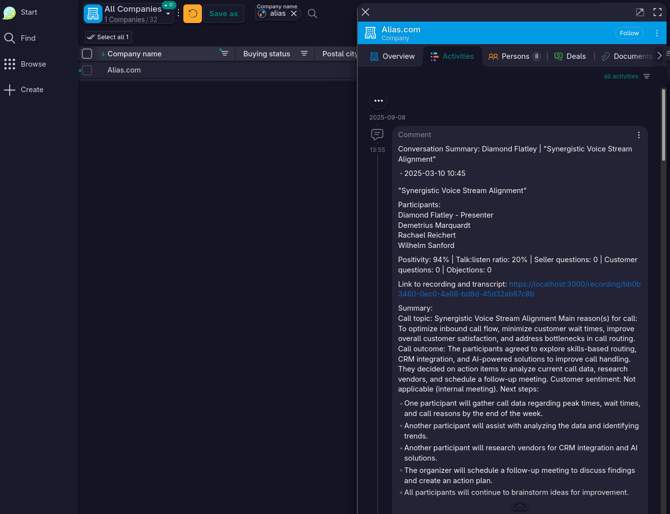
- Open the Company record in Lime CRM.
- Navigate to the History / Activities tab.
- Locate the DCI entry and expand it to view the insights.
Data Mapping & Matching
Contact Matching Logic
Dstny Conversational Intelligence identifies the correct records using the following priority:
- Primary: Email address.
- Fallback: Phone numbers — first attempt: mobilephone, second attempt: phone.
Technical Objects & Endpoints
By default, the integration targets the following Lime CRM endpoints: Person, Company, History Note.
|
Lime Object |
Field |
Dstny Source Data |
|
Person |
|
Receiver first name |
|
|
|
Receiver last name |
|
|
|
Receiver email |
|
|
|
Receiver phone |
|
|
|
Receiver phone |
|
|
|
Company ID (if available) |
|
Company |
|
Receiver company name |
|
History Note |
|
Current timestamp |
|
|
|
Person ID |
|
|
|
Company ID (optional) |
|
|
|
Full AI summary text |
|
|
|
|
Optional: Auto-Create Missing Contacts/Companies
You can automate the expansion of your CRM data through Dstny's settings.
If "Create Contact in CRM" is ENABLED: If no matching person is found in Lime CRM, Dstny will automatically:
-
Resolve Company: Search for or create a new Company (using the participant's company name).
-
Create Person: Create a new Person record and link it to that Company.
-
Attach Note: Create the History note and link it to the newly created Person and Company.
If "Create Contact in CRM" is DISABLED:
-
Dstny will only create history notes for contacts that already exist in your Lime CRM. If no match is found, no data will be sent for that participant.
Troubleshooting
No history note shows up
- Confirm the summary has finished processing in DCI. Wait a few minutes and refresh Lime CRM.
- Ensure the contact in Lime CRM has a registered email or phone number.
- Verify that the API Key and API URL are correctly entered in DCI.
- If the contact does not exist in Lime CRM, either enable "Create Contact in CRM" in DCI or create the contact manually in Lime.
Note shows on Person but not on Company
- The Person record may not be connected to a Company in Lime CRM.
- The Company may not exist, or DCI could not safely resolve or create the record.
Wrong contact matched
- Ensure the person's email or phone number is unique in Lime CRM and check for duplicate records.
- Matching priority: Email > Mobile Phone > Phone.
Test connection fails
- Confirm the API URL is the correct base URL.
- Confirm the API Key is active and has the required permissions.
- If your organization uses a firewall or network allowlist, ensure the Lime CRM API is reachable.
What to send to Support
- The DCI session link (or session ID).
- The receiver's email/phone used for matching.
- Links to the specific Lime CRM Person/Company where you expected the note.
- A screenshot of the failed test message (if applicable).
Disconnecting
- In Dstny Conversational Intelligence, go to Settings > Integrations > Lime CRM.
- Click Disconnect.
Note: Existing history notes created by DCI will remain in Lime CRM as historical records.
Security & Privacy
- Authorized Access: The Lime CRM API key is used exclusively to read and write the required objects (Person, Company, and History).
- Encryption: All requests are encrypted over HTTPS (provided your API URL is HTTPS-enabled).
- Secure Storage: Your API keys are stored securely within the Dstny Conversational Intelligence platform.
- Data Sovereignty: Lime CRM stores the summary text and a link back to DCI. Meeting recordings remain securely stored within Dstny Conversational Intelligence.