
With the Dstny Conversational Intelligence integration, you can automatically send AI-generated meeting summaries from DCI to your SuperOffice CRM. Summaries are pushed via a custom script endpoint, enabling your team to access meeting insights directly in the customer profile.
Getting Started
Prerequisites
|
Credential / Access |
Source |
|---|---|
|
SuperOffice API token/key |
Generate or retrieve from SuperOffice settings. |
|
Domain prefix |
The subdomain part of your SuperOffice URL (e.g., |
|
Customer instance identifier |
Your unique customer instance name. |
|
Dstny Access |
Permission to manage integrations in Dstny. |
Connect SuperOffice and Dstny Conversational Intelligence
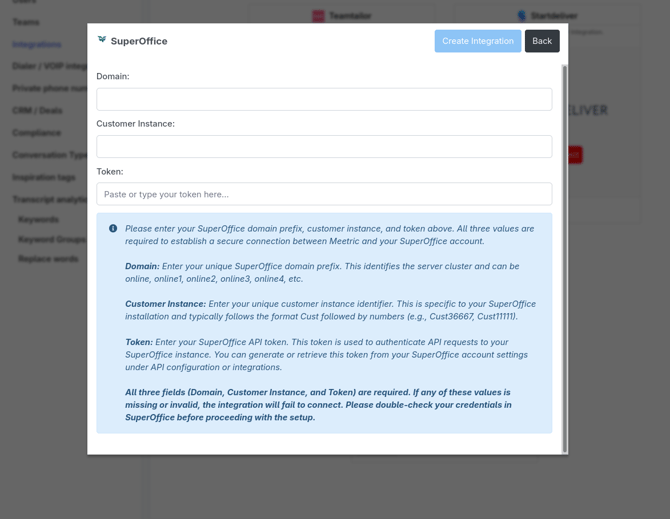
- Get your SuperOffice Credentials: Obtain your Domain prefix, Customer instance identifier, and API Token key from your SuperOffice environment.
- Open DCI: Go to Settings > Integrations > SuperOffice.
- Enter Credentials: Enter your Domain prefix, Customer instance, and paste your Token key.
- Connect & Test: Click Connect, then click Test Integration in DCI. You should see a success message.
How the Integration Works
|
Step |
Action |
|---|---|
|
Meeting Complete |
You hold a meeting/call in Dstny, and the AI summary is generated. |
|
Data Push |
Dstny automatically pushes the complete summary payload to SuperOffice's custom script endpoint. |
|
Processing & Matching |
SuperOffice processes the summary data and associates it with the correct contacts/companies primarily based on email matching. |
|
Availability |
The summary data becomes available inside SuperOffice for your team to review. |
Summary Content Pushed to SuperOffice
Each summary payload includes the following meeting details:
- Meeting name
- Full AI-generated summary
- Start and end dates, and meeting type
- Presenter email and participant emails
- Recording URL (link to DCI recording)
- Location (if available from calendar)
Troubleshooting
|
Issue |
Resolution / Check |
|---|---|
|
Test Connection Fails |
Ensure Domain prefix is only the subdomain (e.g., |
|
No Summary Appears in SO |
1. Verify connection credentials succeed. |
|
Connection Issues |
Check SuperOffice service availability and ensure the token hasn't expired or been revoked. |
Disconnecting
- In DCI, go to Settings > Integrations > SuperOffice.
- Click Disconnect.
Existing summaries remain available in SuperOffice after disconnection.
Security & Privacy
|
Aspect |
Detail |
|---|---|
|
Credentials |
API tokens are used only for sending summaries. All credentials are stored securely in Meetric. |
|
Data Transmission |
All communication is HTTPS-encrypted. |
|
Data in SuperOffice |
Only essential meeting data is transmitted. Recording URLs are links only (no media is stored in SuperOffice). |
FAQ
Can I choose which meetings sync?
No, summaries sync automatically after each meeting. Admins can disable the integration at any time to stop syncing.
How often are summaries sent?
Immediately after the AI summary is generated.
What if a meeting has no summary?
No data will be pushed to SuperOffice.
Can I edit summaries before they are sent?
No, summaries are automatically generated and sent.
How are participants matched?
SuperOffice's script handles the matching process based on email addresses.